If the text output of the previous tutorial was too basic for you, and you wish to have fancier text, take a look at this tutorial. We will be using pre-drawn sprites for our text.
Download this zip file (numbers.zip (6kb)) containing images of numbers and extract the files into a directory on your hard drive eg. "C:\TSS Dx-Creator\Tutorial3b\". Create a new project in this directory, putting a black 640 x 480 background image in bank 1.
At the moment the individual images of numbers aren't very useful to us. We need to make a sprite sheet from them. There is a very easy way to do this with the Sprite Sheet Wizard.
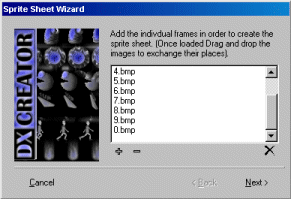
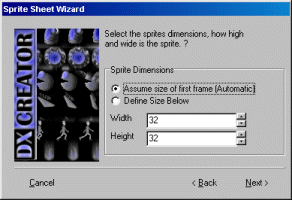
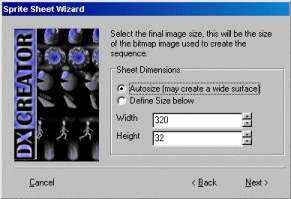
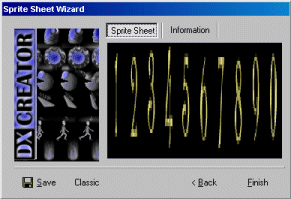
Add the sprite sheet to bank 2 of your project. Now create a sequence in bank 3 using the sprite sheet you just created and these values: Sprite X = 30, Sprite Y = 30, Sprite Count = 10, X Count = 10.
Finally enter the following code into your project :
NOTE: If you do not wish to type the code below you may download or open this text file and simply copy and paste the code into your project.
|
//TUTORIAL 3 PART 2 //DEFINE VARIABLES Global KEYPRESS //DEFINE PROCEDURES DefProc INIT_DISPLAY() DefProc CREATE_SPRITES() DefProc CHECKKEYS() //---- START MAIN CODE ---- //CALL THE PROCEDURE TO CREATE THE SCREEN INIT_DISPLAY() //CALL THE PROCEDURE TO CREATE THE SPRITES CREATE_SPRITES() //START LOOP - THIS LOOP WILL REPEAT UNTIL ESC IS PRESSED Repeat
Update Display KEYPRESS = ScanCode() //GET USER INPUT If KEYPRESS > 257 And KEYPRESS < 268 Then //IF A NUMBER KEY HAS BEEN PRESSED GOTO THE CHECK KEYS PROCEDURE
//THE INIT_DISPLAY PROCEDURE CREATES A SCREEN AND A PLANE Procedure INIT_DISPLAY()
Set Tile 0,0,1 Using Bank 50 //CREATE A TILE USING A BACKGROUND IMAGE IN BANK 1 Create Plane 1 Using Bank 50 //CREATE PLANE 1 USING THE MAP IN BANK 50 //THIS PROCEDURE WILL CREATE THE SPRITE Procedure CREATE_SPRITES()
Sprites On //NOW TURN ON THE SPRITE SYSTEM Sprite Animate 1 Off //THIS PROCEDURE SETS THE SEQUENCE FRAME TO THE CORRECT NUMBER Procedure CHECKKEYS()
Sprite On 1 //ENABLE THE SPRITE EndProg |
