Now we'll learn how to read input from a joystick by creating a simple shooting game.
We want to make the cursor move according to how the joystick is moved. To do this we use two new commands:
- JoystickX(DEVICENUM)
JoystickY(DEVICENUM)

Now lets check to see if the player has shot the duck. We need to examine the joystick button status.
- JoyButton(DeviceNumber,ButtonNumber)
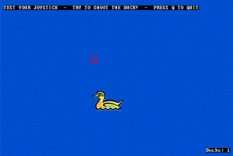
Simple Shooting Game
If you have trouble creating this then take a look at my code below.
NOTE: If you do not wish to type the code below you may download or open this text file and simply copy and paste the code into your project.
|
//TUTORIAL 4 PART 2 //DEFINE VARIABLES Global KEYPRESS$, COUNT, X, TYPE, JOYSTICK, DEVICENUM //COUNT will be used for the total number of devices //X will be used for looping through those devices //TYPE will be the Type ID for a device //JOYSTICK will be TRUE if a joystick was detected or FALSE if there was none found //DEVICENUM will store the location of the joystick in one was found //DEFINE PROCEDURES DefProc INIT_DISPLAY() DefProc CREATE_SPRITES() DefProc PLAYGAME() //---- START MAIN CODE ---- //CALL THE PROCEDURE TO CREATE THE SCREEN INIT_DISPLAY() //CALL THE PROCEDURE TO CREATE THE SPRITES CREATE_SPRITES() //START JOYSTICK DETECTING SEQUENCE JOYSTICK = False //MAKE SURE THIS VARIABLE IS SET TO FALSE BEFORE WE BEGIN COUNT = InputDeviceCount() //GET THE NUMBER OF INPUT DEVICES DETECTED BY DIRECTX For X = 1 To COUNT //LOOP THROUGH EACH DETECTED DEVICE
//SET JOYSTICK TO TRUE TO SAY THAT WE HAVE FOUND A JOYSTICK If TYPE = 4 Then : JOYSTICK = True : DEVICENUM = X : EndIf //STATE WHETHER OR NOT A JOYSTICK WAS FOUND If JOYSTICK = True Then
//WAIT FOR A KEY TO BE PRESSED Wait Key If JOYSTICK = True Then //IF A JOYSTICK WAS FOUND THEN GOTO THE GAME, ELSE THE PROGRAM WILL QUIT
//THE INIT_DISPLAY PROCEDURE CREATES 2 SCREENS AND PLANES Procedure INIT_DISPLAY()
Set Tile 0,0,1 Using Bank 50 //CREATE A TILE USING A BACKGROUND IMAGE IN BANK 1 Create Plane 1 Using Bank 50 //CREATE PLANE 1 USING THE MAP IN BANK 50 //CREATE A SECOND PLANE FOR THE GAME Create Map 640,480,1,1 In Bank 51 //CREATE A MAP IN BANK 51 Set Tile 0,0,4 Using Bank 51 //CREATE A TILE USING A BACKGROUND IMAGE IN BANK 4 Create Plane 2 Using Bank 51 //CREATE PLANE 2 USING THE MAP IN BANK 51 Plane Hide 2//HIDE THIS PLANE FOR THE TIME BEING ReDirect GDI Output To Bank 1 //THIS PROCEDURE WILL CREATE THE SPRITES Procedure CREATE_SPRITES()
Create Sprite 2,100,100 Using Bank 6 //CREATE SPRITE #2 AT 100,100 USING THE SEQUENCE IN BANK 6 Sprites On //NOW TURN ON THE SPRITE SYSTEM Sprite Animate 1 Off //TURN OFF ANIMATION Set Mask 20,20,20,20 For Sprite 1 //MAKE THE MASK FOR SPRITE 1 SMALLER Set Bitmap 2 Transparency To 0,255,0 //CHANGE TRANSPARENCY FOR THE TWO SPRITES Set Bitmap 5 Transparency To 0,255,0 SetMotionSpeed(1,Rnd(3)+3) //RANDOMIZE THE MOTION SPEED FOR SPRITE 1 (MIN = 3: MAX = 6) //THE DUCK SHOOT GAME Procedure PLAYGAME()
//DUCKX AND DUCKY WILL BE THE X OR Y CO-ORDS FOR THE DUCK //JOYX AND JOYY WILL BE THE JOYSTICK'S POSITION ON ITS X OR Y AXIS //CURX AND CURY WILL BE THE X OR Y CO-ORD FOR THE CURSOR //HIT WILL BE TRUE IF THE CURSOR IS CURRENTLY COLLIDING WITH THE DUCK //DUCKS IS THE AMOUNT OF DUCKS SHOT //DIR WILL RECORD THE DIRECTION THAT THE DUCK SHOULD TRAVEL (0 FOR LEFT, 1 FOR RIGHT) Sprite On 1 //ENABLE THE SPRITES Sprite On 2 Plane Hide 1 : Plane Show 2 //HIDE PLANE 1 AND BRING UP PLANE 2 ReDirect GDI Output To Bank 4 //SET THE GDI TO OUTPUT ONTO BANK 4 Text (10,20,"TEST YOUR JOYSTICK - TRY TO SHOOT THE DUCK! - PRESS Q TO QUIT") CURX = 100 : CURY = 100 //SET THE CURSOR CO-ORDS TO 100,100 DUCKX = 660 : DUCKY = 240 //SET THE DUCK CO-ORDS TO 660,240 KEYPRESS$ = "" Sprite Move 1, DUCKX, DUCKY //MOVE DUCK TO THE CO-ORDS SET Repeat
If DIR = 0 Then //PLACE DUCK AT EDGE OF SCREEN TO THE RIGHT OR LEFT DEPENDING ON THE VALUE OF DIR
DUCKY = Rnd(380)+50 //PICK A RANDOM NUMBER BETWEEN 0 AND 380 (FOR Y CO-ORD OF DUCK) Sprite Move 1,DUCKX,DUCKY //MOVE DUCK Set Sprite Motion 1 Using Bank (7+DIR) //SET THE SPRITE TO LEFT OR RIGHT MOTION DEPENDING ON VALUE OF DIR SetMotionSpeed(1,Rnd(3)+3) //PICK A RANDOM SPEED JOYX = JoystickX(DEVICENUM) : JOYY = JoystickY(DEVICENUM) //GET THE VALUES OF THE JOYSTICK X AND Y POSITION //MOVE THE CURSOR BY 2 PIXELS IN THE DIRECTION BEING SET BY THE JOYSTICK If JOYX > 0 Then : CURX = CURX + 2 : Sprite Move 2,CURX,CURY : EndIf If JOYY > 0 Then : CURY = CURY + 2 : Sprite Move 2,CURX,CURY : EndIf If JOYX < 0 Then : CURX = CURX - 2 : Sprite Move 2,CURX,CURY : EndIf If JOYY < 0 Then : CURY = CURY - 2 : Sprite Move 2,CURX,CURY : EndIf HIT = SpriteCollide(2) //IS THE CURSOR COLLIDING WITH THE DUCK? If(JoyButton(DEVICENUM,1)) And HIT > 0 Then //ARE THE SPRITES COLLIDING AND THE FIREBUTTON ON THE JOYSTICK IS BEING PRESSED?
Update Display DUCKS = DUCKS + 1 //UPDATE THE SCORE Text(550,400,"Ducks: " + Str$(DUCKS)) //PRINT THE SCORE Delay(500) //CREATE A SMALL DELAY (1/2 A SECOND) SetSequenceFrame(1,1) //CHANGE DUCK IMAGE BACK TO FRAME 1 KEYPRESS$ = Inkey$() Update Display EndProg |