Tutorial 1 Part 2

You now know how to get a sprite on the screen. In this tutorial we will get the sprite moving across the screen.

Add the following lines of code to the project you created in part 1.
  • Add another global variable called "SPRITE_X" This will record how far across the screen our sprite will be placed.

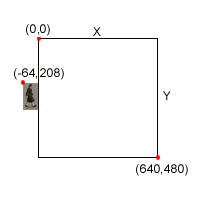
  • Before the repeating loop set "SPRITE_X" to equal -64 (just off the left side of the screen).

  • Inside the repeating loop tell sprite 1 to move to the x co-ordinate set in "SPRITE_X" (Sprite Move 1,SPRITE_X,208).

  • Beneath this line, increment "SPRITE_X" by one to move the sprite 1 pixel along (SPRITE_X = SPRITE_X + 1).

  • Now check to see if the sprite has reached the end of the screen (If SPRITE_X = 640).

  • If it has then set "SPRITE_X" to equal -64 again, causing the sprite to wrap around the screen (Then SPRITE_X = -64 : Endif).

    Co-ords
    Your code should now look like this (the bits you need to add are in red):

    NOTE: If you do not wish to type the code below you may download or open this text file and simply copy and paste the code into your project.


    //TUTORIAL 1 PART 2

    //DEFINE VARIABLES

    Global KEYPRESS$, SPRITE_X

    //DEFINE PROCEDURES
    DefProc INIT_DISPLAY()
    DefProc CREATE_SPRITES()

    //---- START MAIN CODE ----

    //CALL THE PROCEDURE TO CREATE THE SCREEN

    INIT_DISPLAY()

    //CALL THE PROCEDURE TO CREATE THE SPRITES
    CREATE_SPRITES()

    SPRITE_X = -64 //START THE SPRITE AT THE LEFT OF THE SCREEN

    //START LOOP - THIS LOOP WILL REPEAT UNTIL A KEY IS PRESSED
    Repeat

      Sprite Move 1,SPRITE_X,208 //MOVE SPRITE #1 TO THESE CO-ORDS
      SPRITE_X = SPRITE_X + 1 //INCREMENT SPRITE_X

      If SPRITE_X = 640 Then //IS THE SPRITE AT THE END OF THE SCREEN?
        SPRITE_X = -64 //IF SO, THEN MOVE SPRITE TO JUST OFF THE LEFT SIDE
      EndIf

      KEYPRESS$ = Inkey$()
      Update Display

    Until KEYPRESS$ > ""

    //THE INIT_DISPLAY PROCEDURE CREATES A SCREEN AND A PLANE
    Procedure INIT_DISPLAY()

      Create Map 640,480,1,1 In Bank 50 //CREATE A MAP IN BANK 50
      Set Tile 0,0,1 Using Bank 50 //CREATE A TILE USING A BACKGROUND IMAGE IN BANK 1
      Create Plane 1 Using Bank 50 //CREATE PLANE 1 USING THE MAP IN BANK 50
      //SET WHITE TO BE TRANSPARENT INSTEAD OF DEFAULT BLACK AS OUR SPRITE CONTAINS BLACK PIXELS
      Set Bitmap 2 Transparency To 255,255,255

    EndProc

    //THIS PROCEDURE WILL CREATE THE SPRITE
    Procedure CREATE_SPRITES()

      Create Sprite 1,288,208 Using Bank 3 //CREATE SPRITE #1 AT 288,208 USING THE SEQUENCE IN BANK 3
      Sprite On 1 //ENABLE THE SPRITE
      Sprites On //NOW TURN ON THE SPRITE SYSTEM

    EndProc

    EndProg


  • When you run the project now, the man should walk across the screen going to the right. When he reaches the far right he should reappear on the left. This will repeat until a key is pressed.

    Previous Page  Next Page